Crew Surveys and Shift Shortcuts What's New, October 2
Crew surveys that never save names, shift shortcuts, time-off patterns, manuals inside work orders, and a To-Do Spotlight on weather checklists.
WashConsole Team/October 2, 2026/7 min read
Car wash crews can now answer short surveys that never save their names, and once a survey closes with enough answers, you see the results. One tap fills in a shift from what someone usually works, the time-off list points out patterns, and a machine's manual now opens right inside its work order.
Surveys
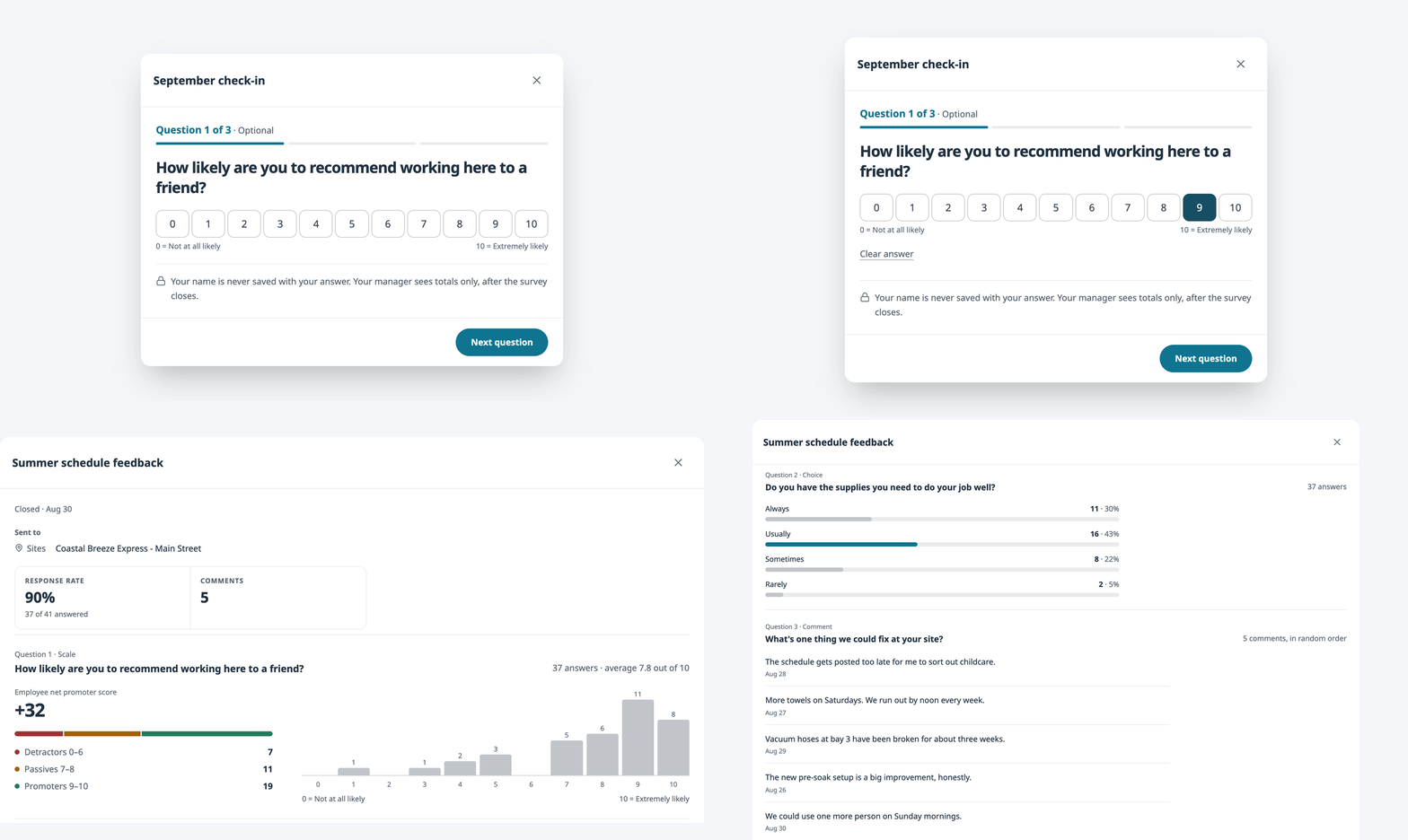
Owners and managers can send short surveys to their crews at every site, and names are never saved with the answers.
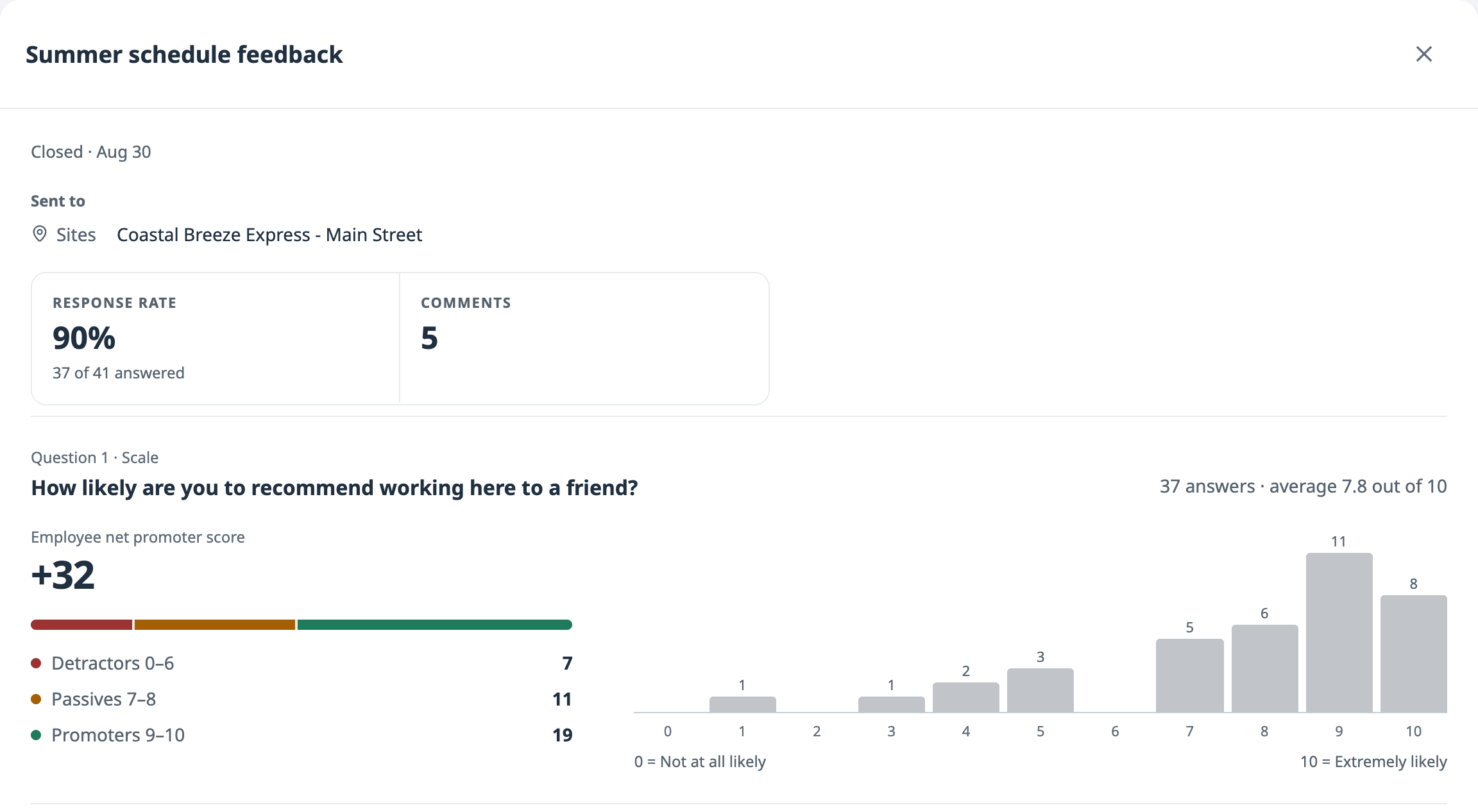
A crew member answers in a few taps, and the manager sees the results once the survey closes.
Ask your crew how things are going. Open Survey in TeamConsole and select New survey. Questions can be a 0 to 10 or 1 to 5 scale, a choice or a comment.
Pick who answers. Send it to everyone at the sites you pick, or only to certain roles or job titles.
Post it in chat. A card with an Answer button lands in each chat you pick, so nobody has to go looking for it.
Decide when results show. Results stay hidden until the survey closes and the number of answers you chose comes in. You can choose 1, 2, 3, 4, 5 or 10 answers, and four is the default.
See what your crew thinks. When a survey closes with enough answers, its report shows the response rate, plus the scores, choice counts or comments for each question that has enough answers of its own. A 0 to 10 question also gets an employee net promoter score. Export CSV saves the question results to a spreadsheet.
Keep the list tidy. Archive a survey when you're done with it and restore it any time. The 7d, 30d, 90d and 12m buttons narrow the list of surveys you sent.
TeamConsole
Scheduling
Adding a shift can start from what usually happens, and one availability edit can cover all of a person's sites.
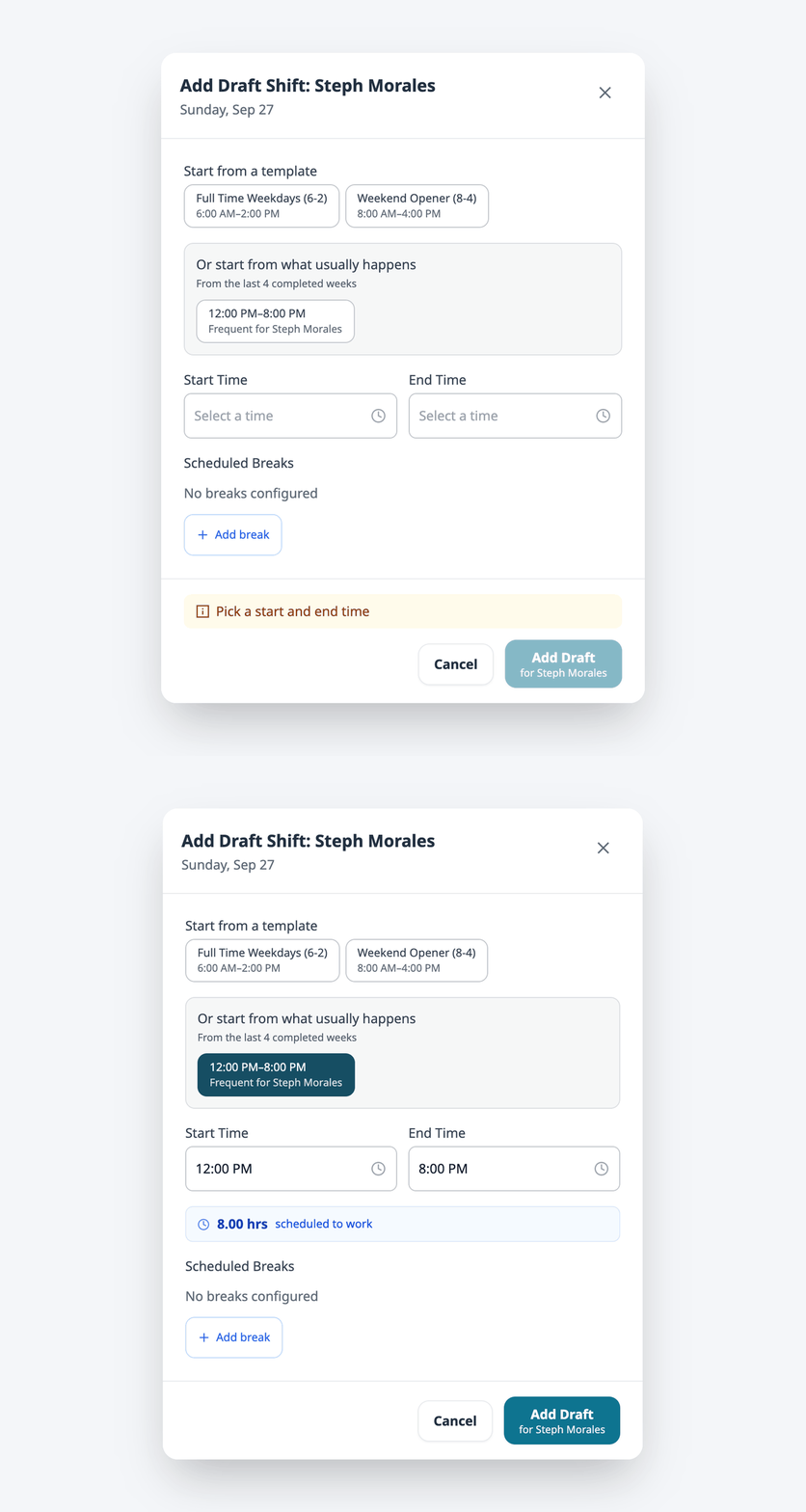
One tap fills in the times this person usually works.
Start a shift from what usually happens. When you add a shift, the window offers one-tap times: the shift this person works most often, and the one their job title works most often, over the last four completed weeks.
Save availability to all of someone's sites at once. When a person works at more than one site, choose All sites this person works at (the option shows how many) instead of This site only. It covers up to nine sites in one save.
Time off now keeps a record after a request is decided, and you can set how often you run payroll.
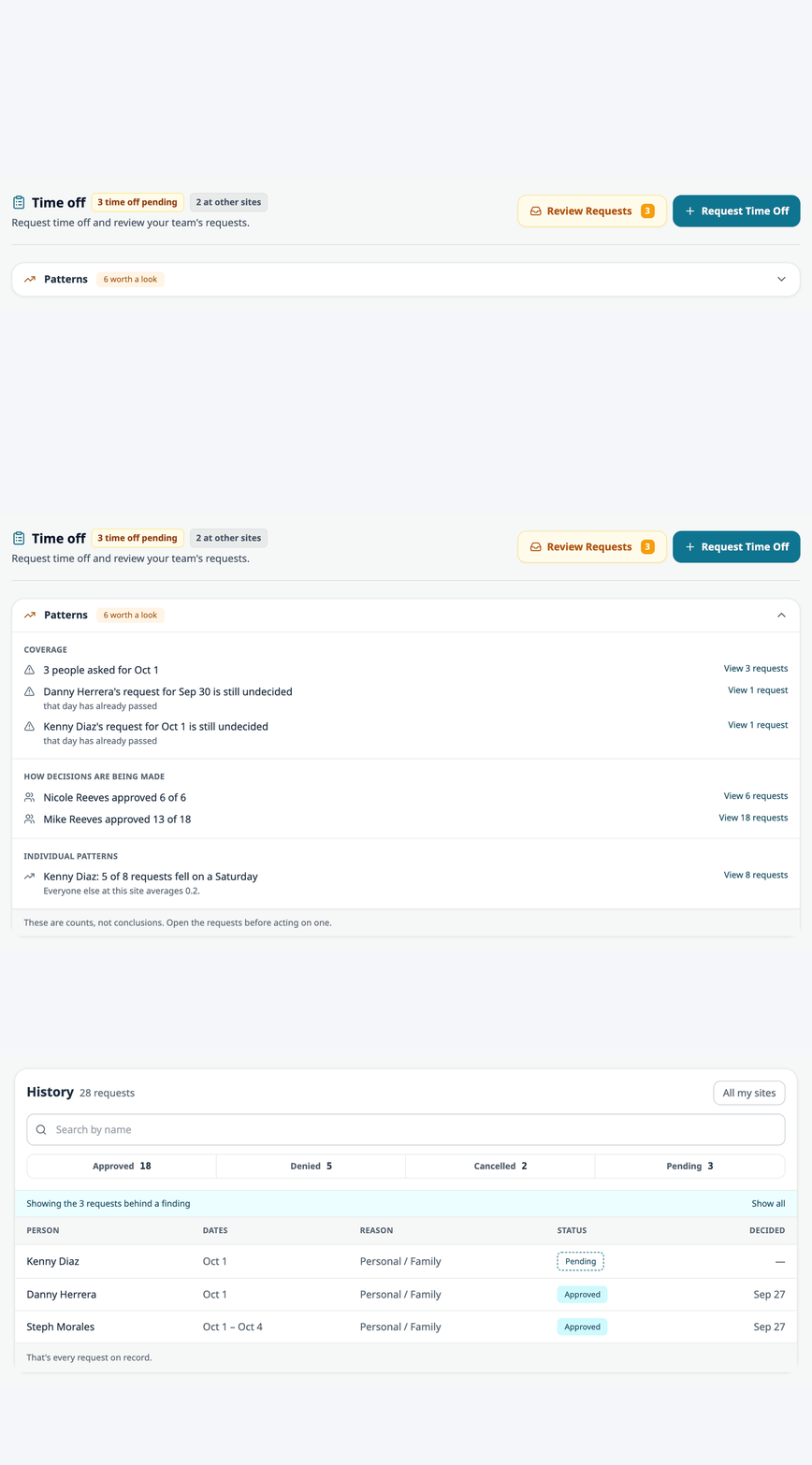
Patterns points out what is worth a look, and View opens the requests behind it.
See every time-off request, not just pending ones. In Time Clock, the Requests tab now has a History list of approved, denied and cancelled requests. You can search it by name and switch between this site and all your sites.
Spot patterns early. Patterns sits above History and flags what is worth a look. That can be a date several people asked for, a request still waiting as its day gets close, a gap in how managers decide once there is enough history, or one person's requests landing on the same weekday. Each one is a count, and View opens the requests behind it.
Cancel approved time off. Employees can cancel their own approved time off from My time off. A manager can select Cancel this time off on a request in History and add a reason. Both work until the night before the time off starts. This is on the web now and coming to the iPhone app in its next update.
Set your pay period. In Time Clock Settings, under Pay week, choose Weekly, Every two weeks or Twice a month. The Netchex send follows it, and payroll import files work with Weekly and Every two weeks.
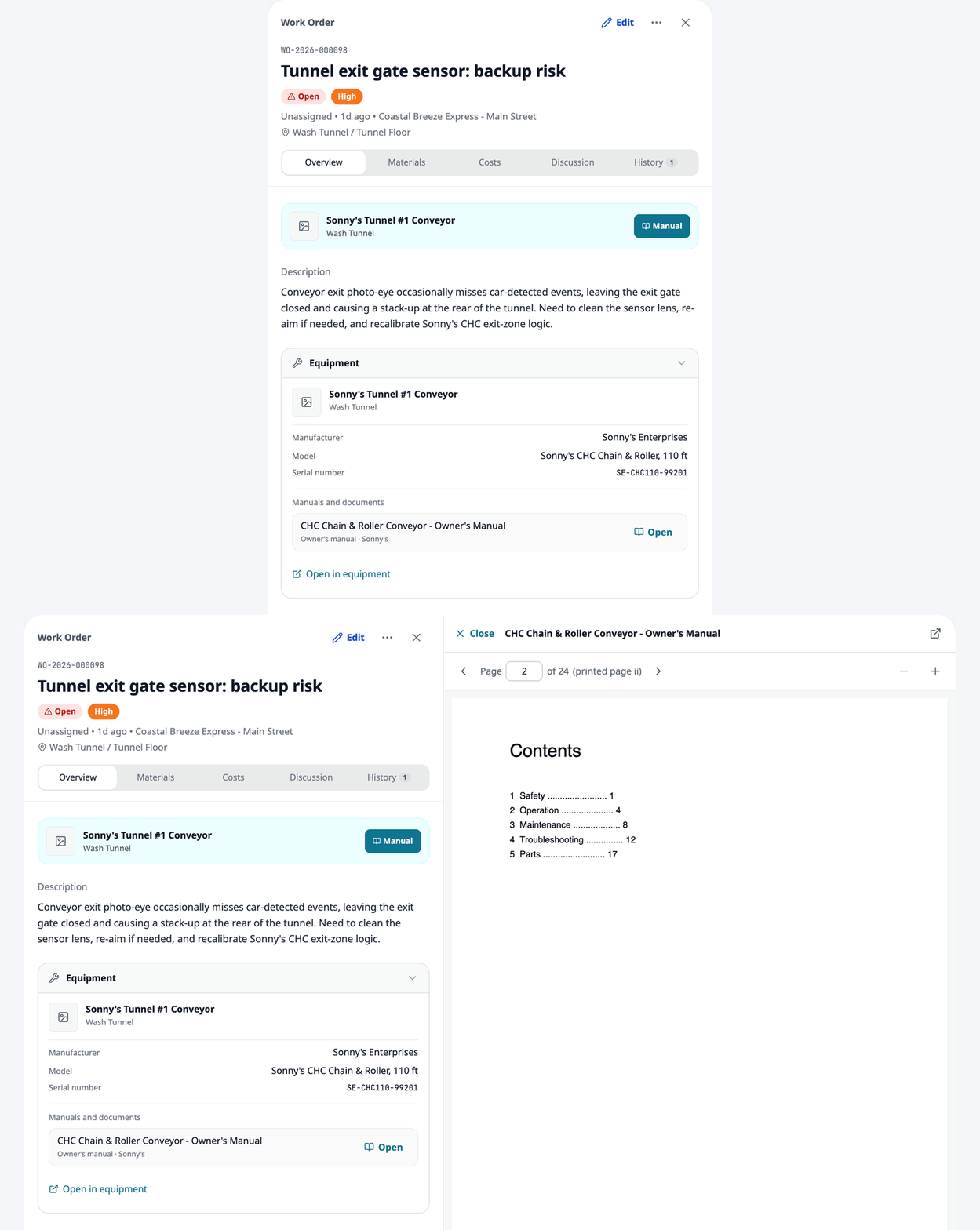
Each work order now shows the machine it's about, and that machine's manual opens right inside the work order.
Select Manual and the machine's manual opens right next to the work order.
Read the manual without leaving the work order. The machine a work order is about now sits at the top of it, with its photo, name and area. Select Manual and the manual opens right there: beside the work order on a wide screen, and in its place on a phone, with a button back to the order. The viewer has page controls and zoom. We showed the equipment card on a work order in our last update.
Start a work order from the machine. On a machine's page in Equipment, New work order opens a work order already set to that machine.
Filter to what's overdue. Select Overdue on Work Orders to see only orders past their due date. Each one has a red Overdue badge. To-Do has the same Overdue filter, and Orders has an Urgent one.
OpsConsole
Reviews
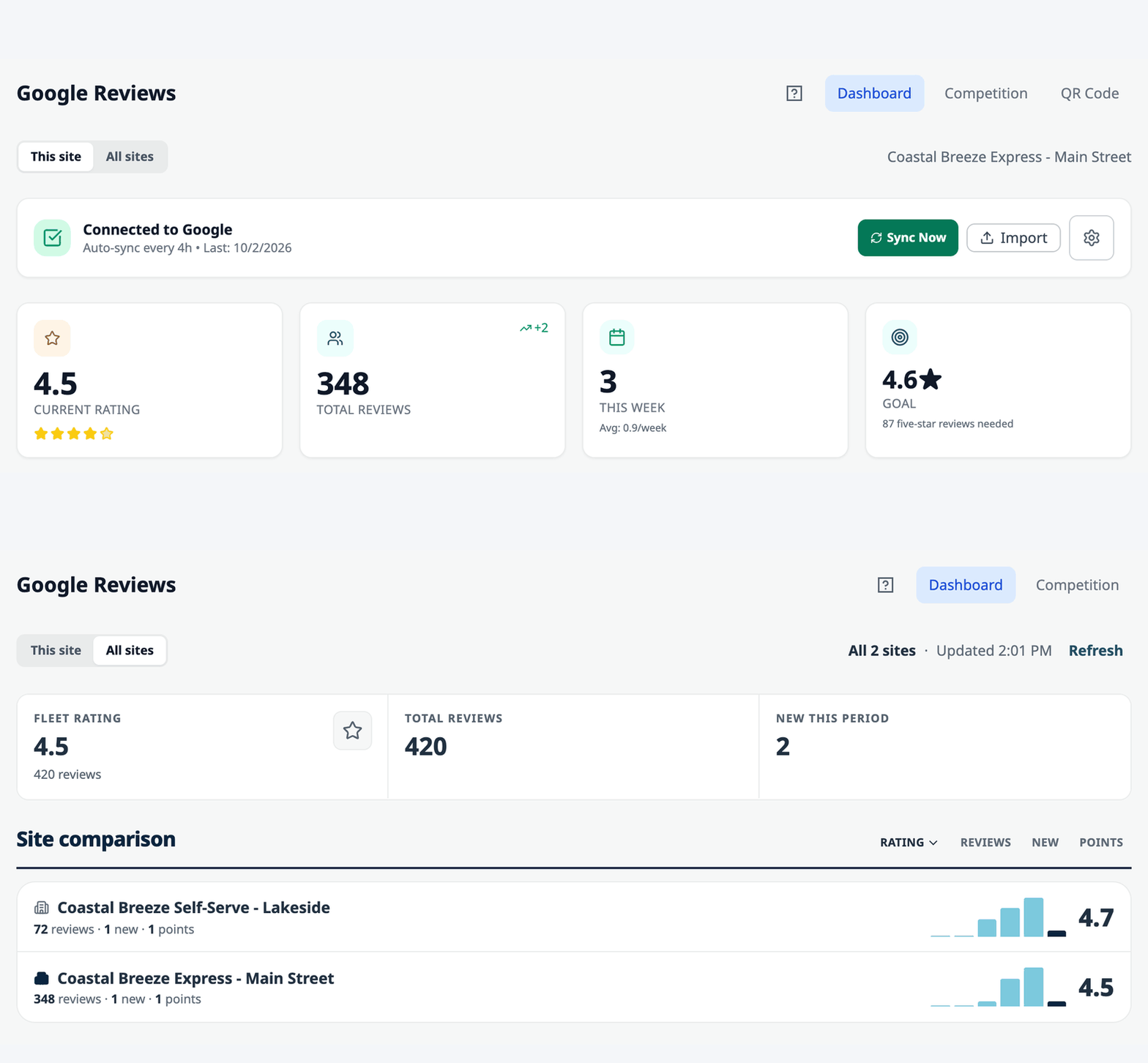
If you can see more than one site, you can now compare them on one screen.
All sites puts every location side by side.
Compare all your sites. On Google Reviews, switch from This site to All sites. The Dashboard compares ratings and review counts for every site you can see, and Competition puts the sites running the competition on one leaderboard that shows which sites each person's credited reviews came from. Our guide to running a Google review competition has ideas for using it.
LearnConsole
WashConsole LEARN
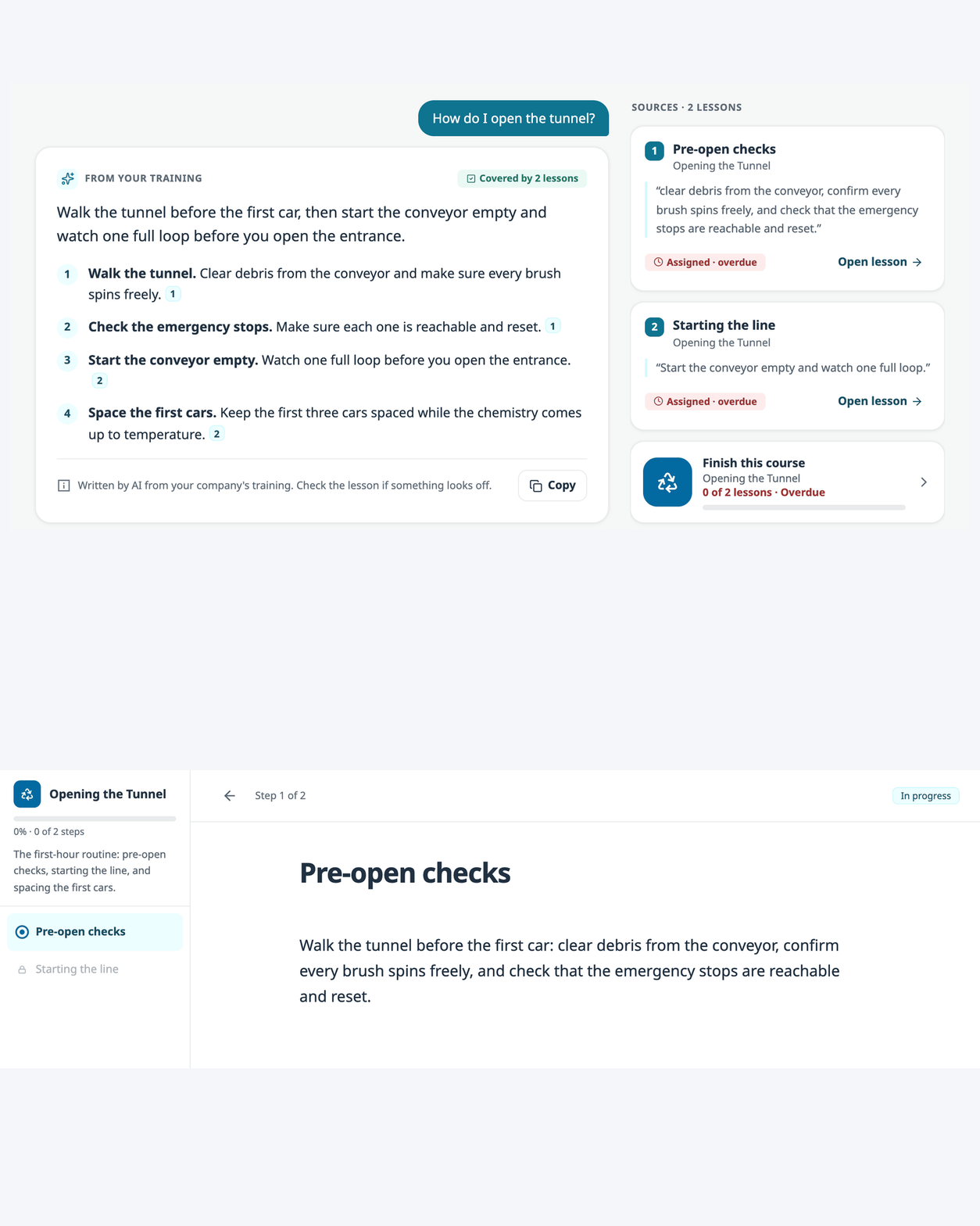
Learn picked up four changes, starting with answers to how-to questions straight from your own lessons.
Each step points to the lesson it came from, and Open lesson takes you there.
Ask your training. Type a how-to question in Learn and get a short answer with numbered steps. Answers come only from the published courses that person can open. Each step shows which lesson it came from, and Open lesson takes them straight to that lesson. Ask is in Learn on the web for every role, and it is coming to the iPhone app in its next update.
Edit a published course without learners seeing half-done work. Changes to a published course you built now go into a draft. Learners keep the published version until you click Publish changes, and Discard changes throws the draft away. Publishing asks everyone who finished the course to take it again, and the Publish changes window says so first.
Staff can renew their own certificates. When a certificate has expired or will expire within 30 days and its course can be retaken, its card in Learn > Certificates shows Renew. The employee retakes the training from the first lesson, and finishing it renews the certificate.
Aim training at job titles. A curriculum or course can now go to job titles as well as roles, like every Tunnel Greeter at your sites. Read more about car wash employee training.
Platform
Across the app
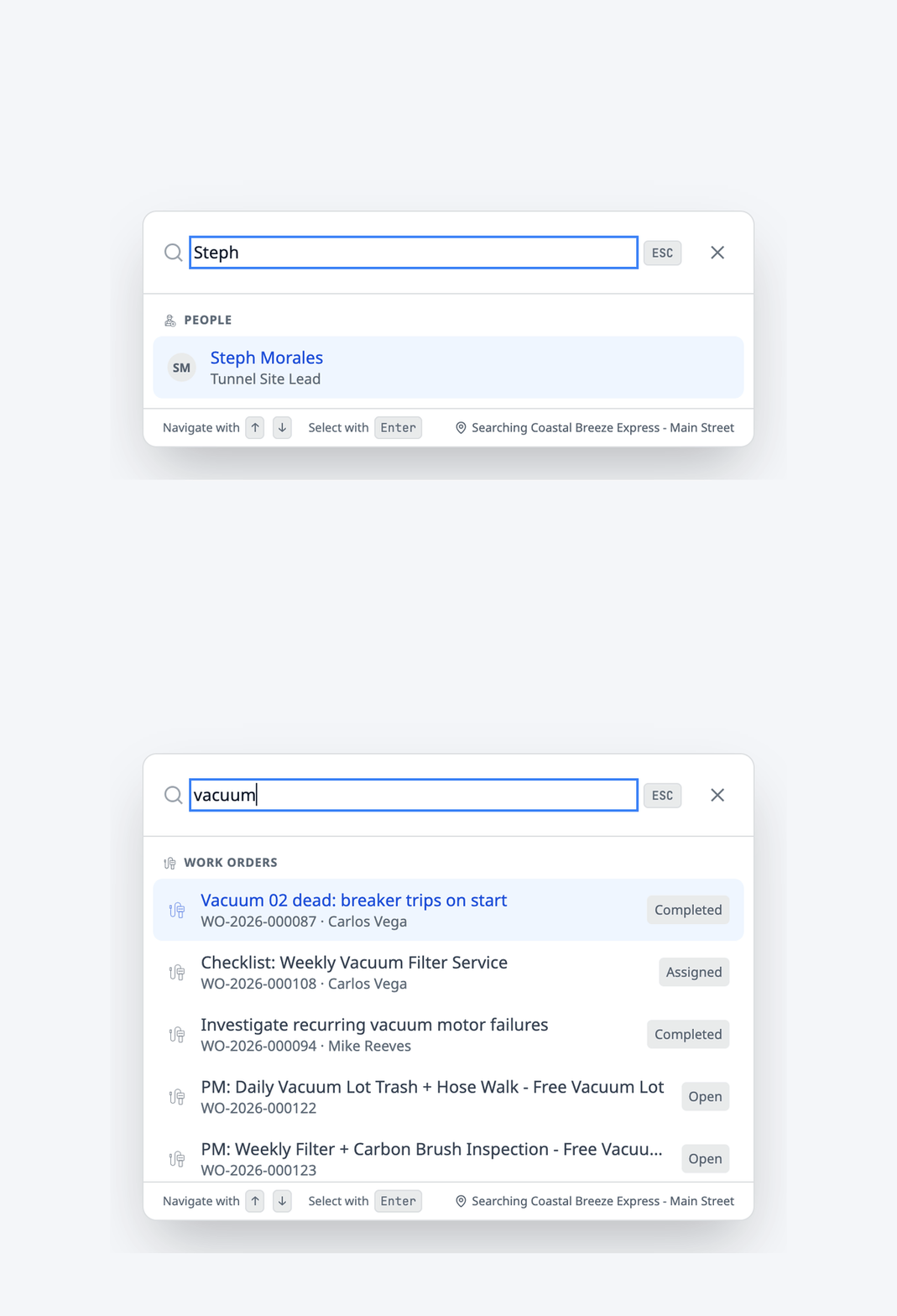
The search box at the top of every page now finds people and records, not just pages.
Search finds people and records, not only pages.
Search finds people and records. Use the search box at the top of the page, or the search icon on a phone. Type a name or a word and jump straight to a work order, piece of equipment, chemical, complaint, to-do or team member.
Your photo, name and role sit at the top right. Select them to add a profile photo, open Settings, report a problem or sign out.
Search past work in the Feed. Type the name of a to-do, work order or inspection to see every time it was finished. Technicians and above can search back through all of it.
Send a customer a closing message. When a manager resolves a complaint a customer submitted, they can send the customer one closing message of their own. Internal notes are never included. See how complaints work.
Spotlight: To-Do
To-Do runs a car wash's daily checklists: opening, midshift and closing. Here are four parts of it that are easy to miss.
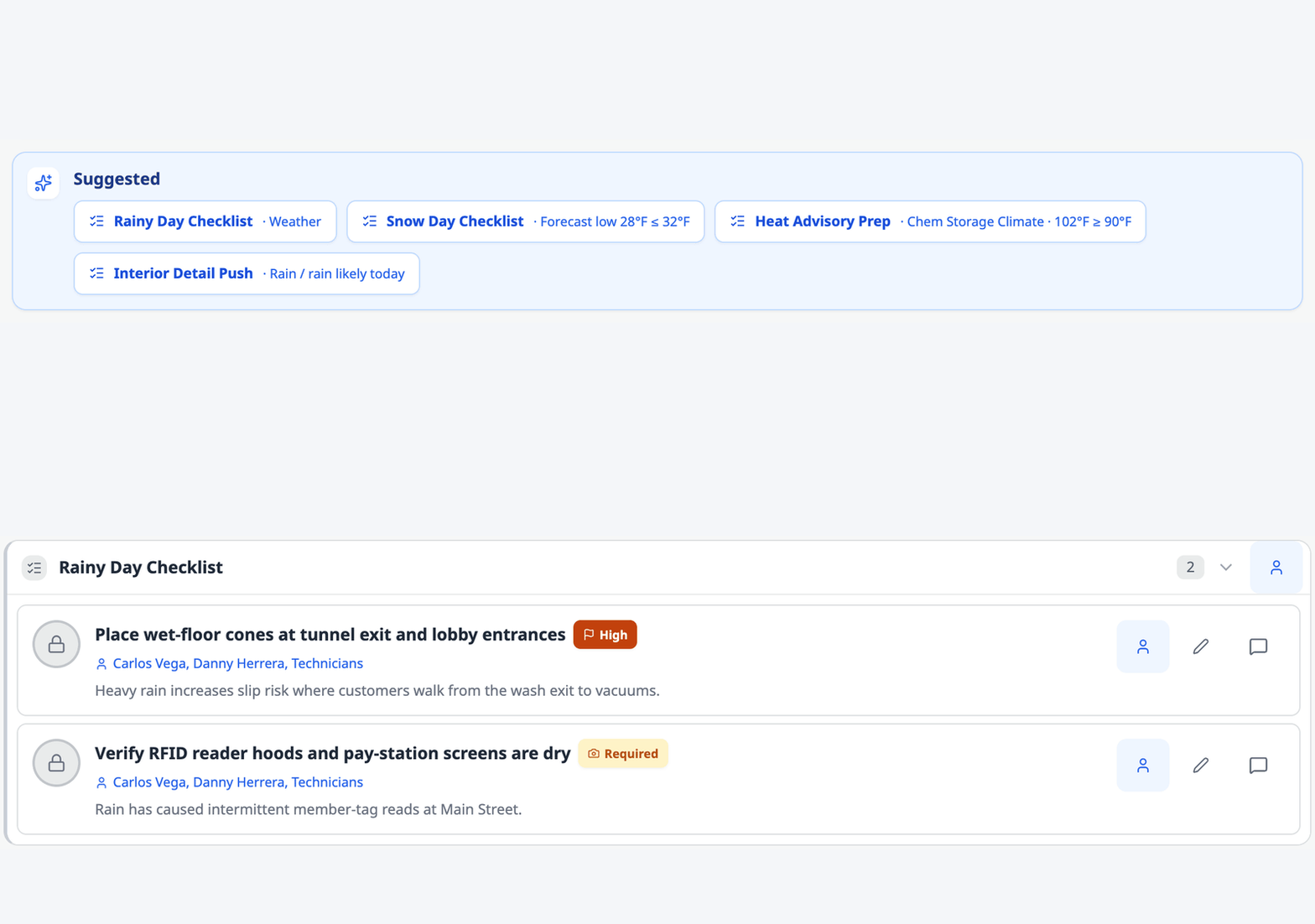
When the weather turns, the matching checklist is one tap away.
Lists that show up when the weather turns. A list named for the weather, like a Rainy Day Checklist, is suggested at the top of To-Do when that weather arrives. Select it to add its tasks to today. To set your own rule, open the list and add a trigger under Recommendations: a sensor reading, the 24-hour forecast or the current weather.
Add a whole checklist in one go. Select Add Task, then Several tasks, and type or paste your list. Press Enter after each one.
Ask for photo proof. Turn on Require Photo in a task's options and choose how many photos it needs. The crew can't finish it without them.
Get told when it's done. A Completion Alert sends an iPhone notification, an email or both to the roles you pick. If you pick none, owners, managers and site leads get it.
Questions or ideas? Email contact@washconsole.com.