Connect WashConsole to Claude and Claude Code
WashConsole runs a remote MCP server. Add it as a custom connector on claude.com, or with one command in Claude Code, and ask what is broken, what is running low, and who is behind on training.
What This Is
WashConsole runs a remote MCP server. MCP, the Model Context Protocol, is the open standard AI assistants use to read from outside systems, and it means any MCP client can connect to your account and answer questions about your wash from your live data.
One server, two ways in. Add it as a custom connector on claude.com and the Claude apps, or add it to Claude Code with a single command. Both are below, and everything after them, what it can read, what it can never read, troubleshooting, applies to both.
Once it is connected you can ask things like:
Claude reads your WashConsole data to answer. It cannot change anything.
Before You Start
Three things have to be true:
Connect On claude.com
WashConsole is not in Claude's connector directory, so you add it yourself as a custom connector. It takes a name and a URL.
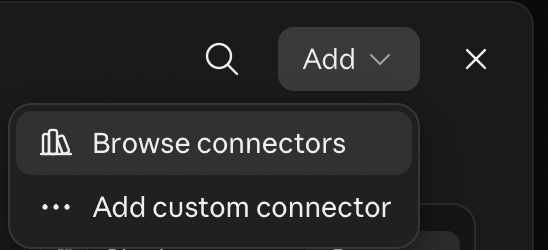
Open Claude, go to Customize → Connectors, then click Add and choose Add custom connector.
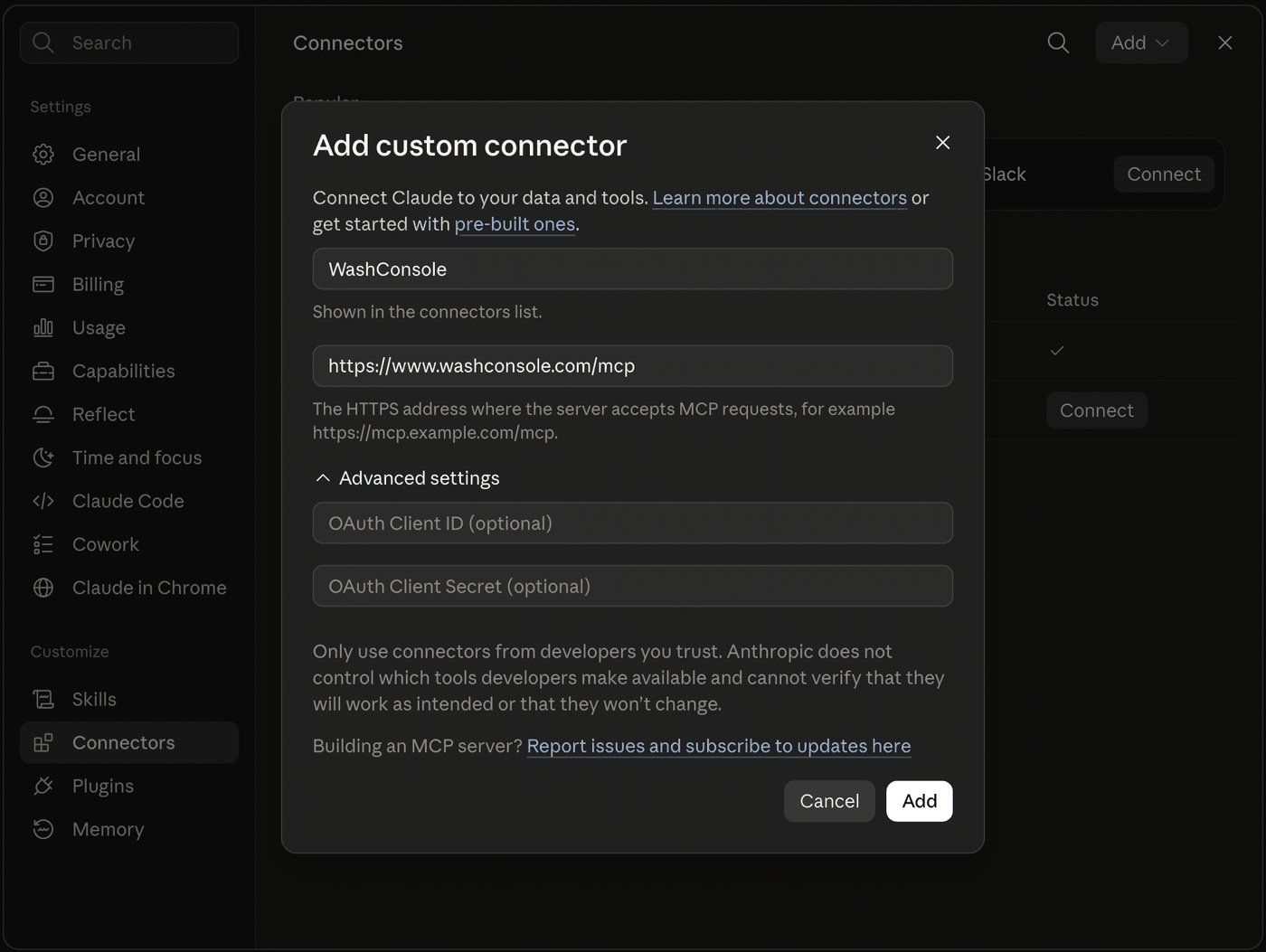
Fill in the two fields:
WashConsole is the obvious choicehttps://www.washconsole.com/mcpLeave OAuth Client ID and OAuth Client Secret empty. WashConsole registers your client automatically, so there is nothing to paste there, and putting invented values in those fields is the one thing that reliably breaks the connection.
Click Add, then Connect on the new row. Claude sends you to a WashConsole approval screen that lists exactly what the connection will and will not be able to read.
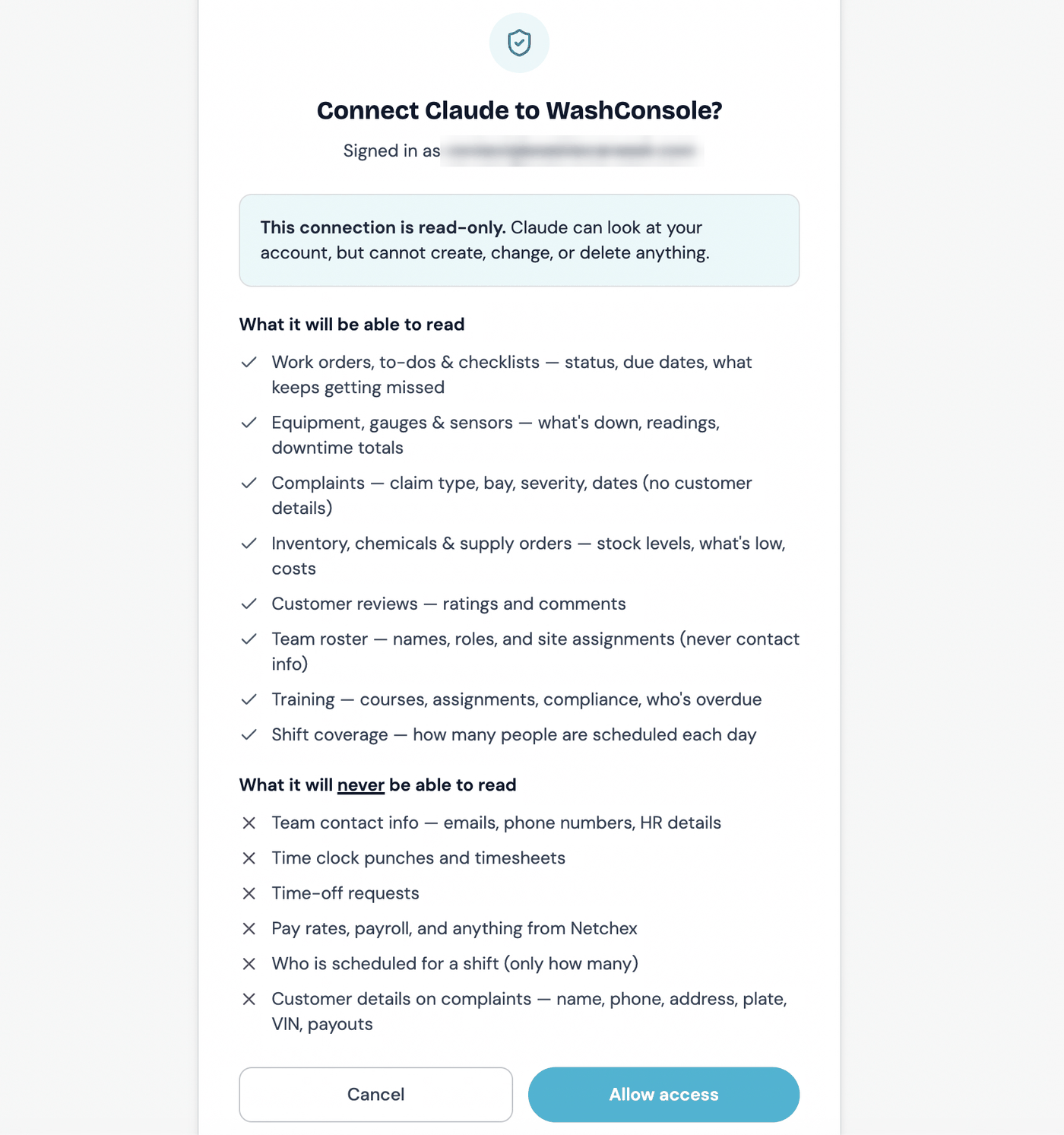
Check the Signed in as email before you approve. The connection binds to whichever WashConsole login you approve with, and there is no account picker on that screen.
Once approved, WashConsole shows in your connectors list as a Custom web connector.
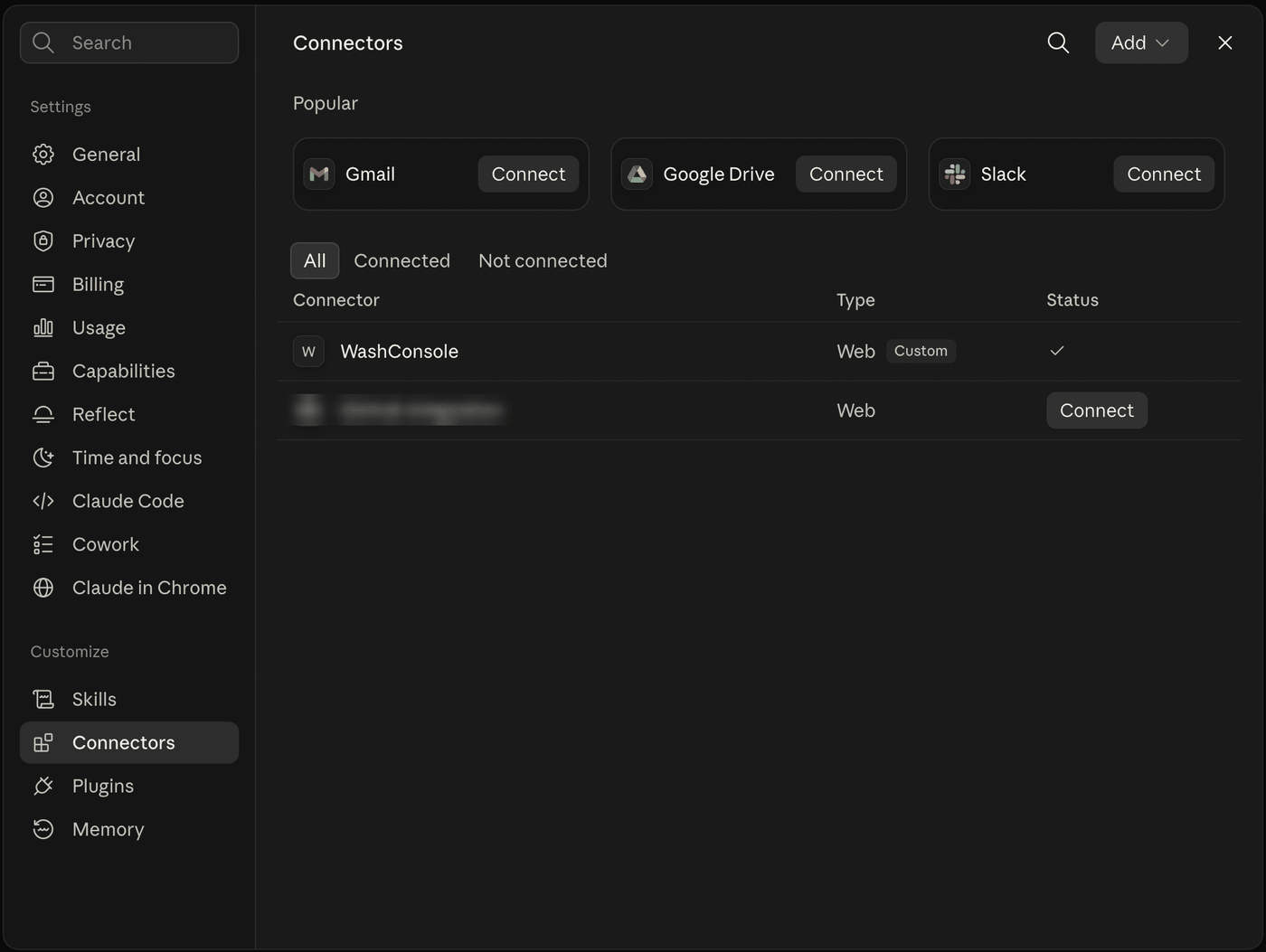
To use it in a chat, click + in the message box, choose Connectors, and switch WashConsole on.
Tool permissions
Opening the connector shows all 25 read-only tools, each with Always allow, Needs approval, or Blocked. Everything is readable by default within your role, but if you would rather be asked before Claude looks at something, the account summary, say, set that tool to Needs approval.
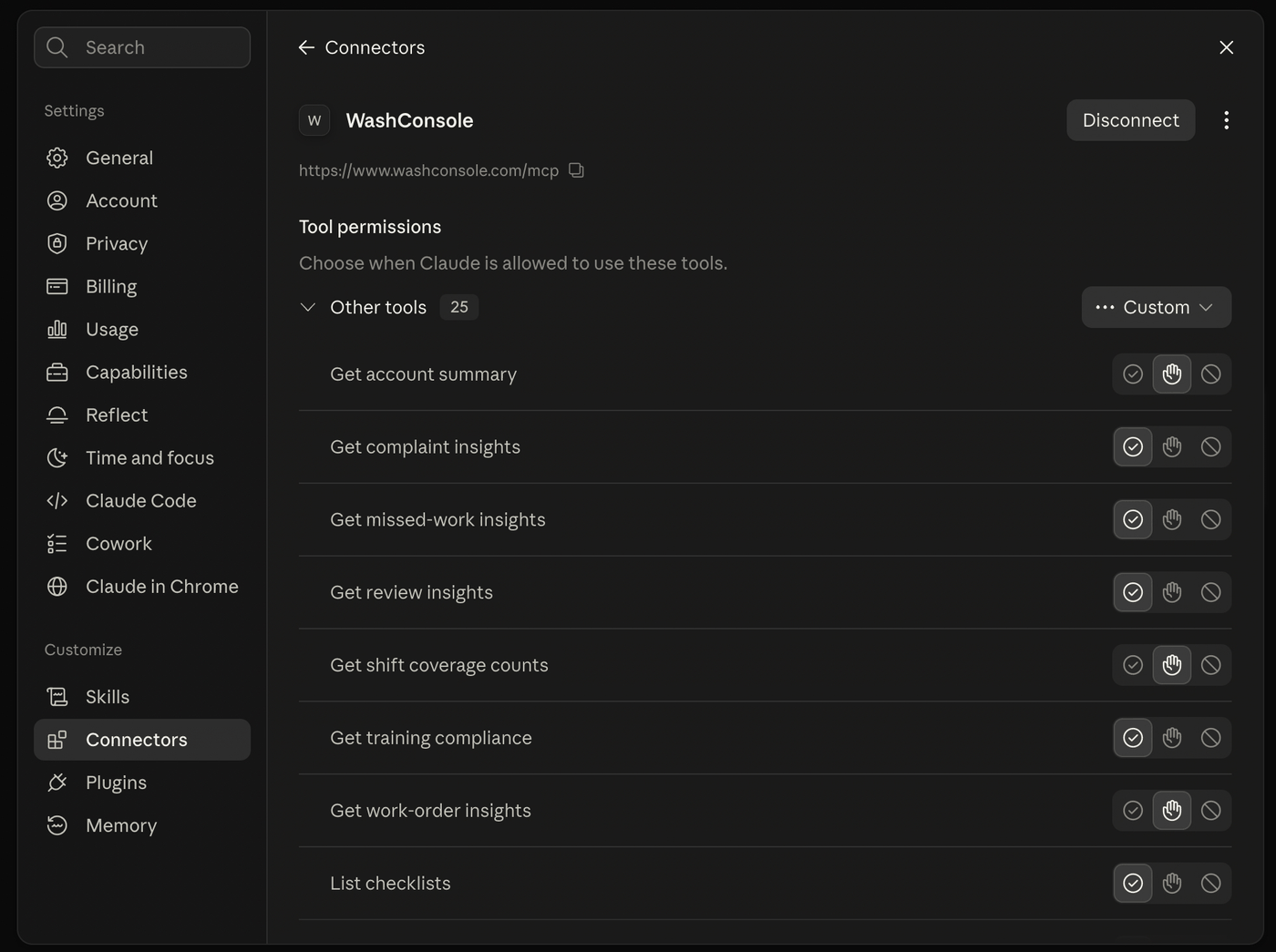
This is a second lock, not the first one. Your WashConsole role still decides what any of these tools can return, and the withheld list is enforced on our side no matter what you set here.
On Team or Enterprise plans, an organization owner adds the connector once under Organization settings → Connectors, Add, hover Custom, choose Web, and everyone else then connects from Customize → Connectors. Adding it for the organization does not grant anyone access: each person still signs in with their own WashConsole login, and their own role decides what they see.
Custom connectors work on claude.com, the Claude desktop app, and Cowork. Free plans are limited to one custom connector; paid plans are not.
Connect In Claude Code
Add the server
One command. Run it from any directory:
claude mcp add --transport http washconsole https://www.washconsole.com/mcpThat writes the server into your local configuration, which means it is available in the directory you ran it from. To make it available in every project you open, add it to your user configuration instead:
claude mcp add --transport http --scope user washconsole https://www.washconsole.com/mcpClaude Code prints an Added ... line. Nothing has authenticated yet: that is the next step.
Sign in
Start Claude Code and run the MCP panel:
claudeThen, inside the session:
/mcpPick washconsole and choose to authenticate. Your browser opens on a WashConsole approval screen.
From version 2.1.186 you can skip the panel and do it straight from your shell:
claude mcp login washconsoleEither way, the flow is the same: sign in to WashConsole if you are not already signed in, read the approval screen, and approve. Claude Code handles the OAuth exchange and stores the credentials for you.
Working over SSH, or on a machine with no browser? Add --no-browser and Claude Code prints the authorization URL instead of trying to open one. Open it on your own machine, then paste the full redirect URL back at the prompt. That paste step needs an interactive terminal, so connect with ssh -t.
Confirm it works
claude mcp listYou are looking for ✔ Connected next to washconsole. If it says ! Needs authentication, the sign-in step did not finish. Run it again.
For detail on one server, including whether credentials are stored:
claude mcp get washconsoleThen ask it something. A good first question is one you already know the answer to, so you can check the result against the app:
What's broken at my sites right now?Check Which Account You Are Approving
The approval screen shows Signed in as with your email address. Read it before you approve.
A WashConsole login belongs to exactly one account. If you run more than one business and keep a separate login for each, the connection is tied to whichever login you approved with: there is no account picker on that screen, and you cannot switch it afterward.
If the email is wrong: sign out of WashConsole, sign back in with the right login, and run the sign-in step again.
What You Can Ask About
Claude reads through a fixed set of lookups. It cannot write its own queries, and it cannot reach a collection that is not on this list.
Sites
Maintenance and equipment
Daily operations
Supplies
Customers
People and training
Account
If you are a manager, Claude only sees the sites you are assigned to. If you are an owner, it sees every site in the account.
Example Questions
Questions that combine several lookups are where this earns its keep:
What It Can Never See
Some data is withheld by design. It is not a setting, and no role unlocks it:
Staff contact info and HR details. Names and roles are visible; email addresses, phone numbers, photos, and personal records are not.
Time clock punches. No clock-ins, clock-outs, or hours.
Time off and PTO. Neither the requests nor the balances.
Anything payroll. Pay rates, compensation history, timesheets, payroll exports.
Individual schedule rows. Claude can tell you how many people are on Saturday, never who.
Customer identity on complaints. No name, phone, email, address, license plate, VIN, or payout amount.
Reviewer names on Google reviews are not exposed either.
Free-text fields your staff typed, a work order description, for instance, are scrubbed for email addresses and phone numbers before they leave. That scrubbing catches patterns, so treat it as a safety net rather than a guarantee: a customer's name typed into a description is not a pattern, and can still come through. Keep customer details out of free-text notes.
Read-Only, Always
The connection is read-only. Claude can look at your account, but it cannot create, edit, or delete anything. It cannot clock anyone in or out, change a schedule, task, work order, or inventory count, or touch your billing and subscription.
There is no setting that makes it writable, and there is no write scope to request.
Your role is re-checked from your live team record on every single request, not once at connection time. Demote a manager and their connection stops answering on the next question. The same is true of your subscription: if it lapses, access pauses.
Managing The Connection
On claude.com, go to Customize → Connectors, then use the three-dot menu next to WashConsole to remove it. Organization-wide connectors are removed by an owner under Organization settings → Connectors.
In Claude Code, from your terminal:
# See every configured server and its status
claude mcp list

# Clear stored credentials but keep the server configured
claude mcp logout washconsole

# Remove the server entirely
claude mcp remove washconsole
Either way, removing the connector stops that client from using it, but the grant still exists on the WashConsole side. To revoke it there, open Settings in the web app, find Connected AI assistants, and press Disconnect, then Confirm?. That takes effect immediately.
Owners see every connection in the account, including ones a manager set up, and can disconnect any of them. Managers see only their own. Each row shows when the assistant was connected and when it was last used, which makes that screen the place to check whether anything is still connected.
Connecting and disconnecting are web only: there is no Connected AI assistants screen in the iOS app.
Troubleshooting
The connector will not add on claude.com. Check the URL is exactly https://www.washconsole.com/mcp, with no trailing slash and no path after /mcp. Leave the Advanced OAuth fields empty; filling them in with invented values will fail.
`! Needs authentication` in `claude mcp list`. Sign-in never completed, or the stored refresh token is gone. Run claude mcp login washconsole again.
"Only owners and managers may connect WashConsole to an AI assistant." Your role does not permit a connection. Ask an owner.
"This WashConsole subscription is not active, so AI assistant access is paused." Billing lapsed. An owner can fix it in Settings → Billing, and access resumes on the next request.
"Your account membership changed; reconnect to continue." Your team record moved: a role change or a site reassignment. Sign in again.
Claude says the tools are unavailable in a `claude -p` run. Non-interactive mode has no /mcp panel, so Claude Code cannot run the OAuth flow there. Sign in once from an interactive session, or with claude mcp login washconsole, and the credentials carry over.
The browser never opens. You are probably on a headless machine. Use claude mcp login washconsole --no-browser and connect with ssh -t.
Under The Hood
For anyone who wants the specifics before pointing a client at it:
https://www.washconsole.com/mcp, streamable HTTPwashconsole, version 1.1.0, 25 read-only toolshttps://www.washconsole.com/.well-known/oauth-protected-resourcewashconsole:read. There is no write scope--callback-portEvery lookup an assistant makes against your account is logged for 90 days.
One Thing Worth Thinking About
Answers land in a chat transcript on whatever machine and account you are running Claude Code from, and they stay there. That may be a personal laptop under a personal Claude account, and WashConsole cannot reach into that transcript or delete it.
That persistence, more than the wash data itself, is why the withheld list above is as strict as it is, and it is a good reason to be deliberate about who in your business holds a connection.
Support
Questions about connecting, or something not behaving the way this guide describes? Email support@washconsole.com, or check Settings → Connected AI assistants to see what is currently connected.